How to Set Up a Business Service in Elas Booking
Learn how to create a bookable business service with duration, price, staff, deposits, buffers, add-ons, and a public booking link.
On this page
A business service is the thing a client can book: a haircut, consultation, cleaning visit, class, rental slot, repair callout, private event, lesson, or any other appointment-led offer. In Elas Booking, the service controls the client-facing name, duration, price, booking type, capacity, staff assignment, deposit rules, address requirements, and optional scheduling buffers.
This guide walks through the full setup from the first service draft to the public booking link. It is written for business owners and managers who want a practical setup they can review before opening the service to clients.
What a Service Controls
A service is more than a label on the booking page. It tells the calendar how much time to block, tells the client what they are booking, and tells the business what information is needed before the appointment starts.
A complete service setup can include:
- Service name and public description.
- Duration in minutes or days.
- Category, so clients can scan the booking page faster.
- Booking type, such as one-to-one appointment, class, tickets, or assigned seats.
- Capacity for group, ticketed, or seated bookings.
- Staff who can perform the service.
- Default staff member for bookings where the client does not choose a person.
- Price and currency.
- Optional deposit amount.
- Required client address for home visits, callouts, mobile services, or on-site work.
- Optional package access, meeting link, meeting instructions, and scheduling buffers.
- Optional add-ons that clients can select after choosing the main service.
Before You Start
Open the owner dashboard and go to Services. You should be signed in as a business owner or manager for the business you are editing.
Before clients can reliably book online, the business should also have:
- At least one active service.
- Business hours in Availability.
- Bookable staff in Staff, unless the business is a solo setup where the owner is the bookable provider.
- Payment setup in Payments if the service requires deposits or online payment.
- Clear cancellation and preparation rules if the service uses deposits, travel time, equipment, room setup, or limited capacity.
You can create the service before all of those items are finished, but clients cannot use the full booking flow until the service, availability, and staff setup work together.
Step 1: Open the Services Page
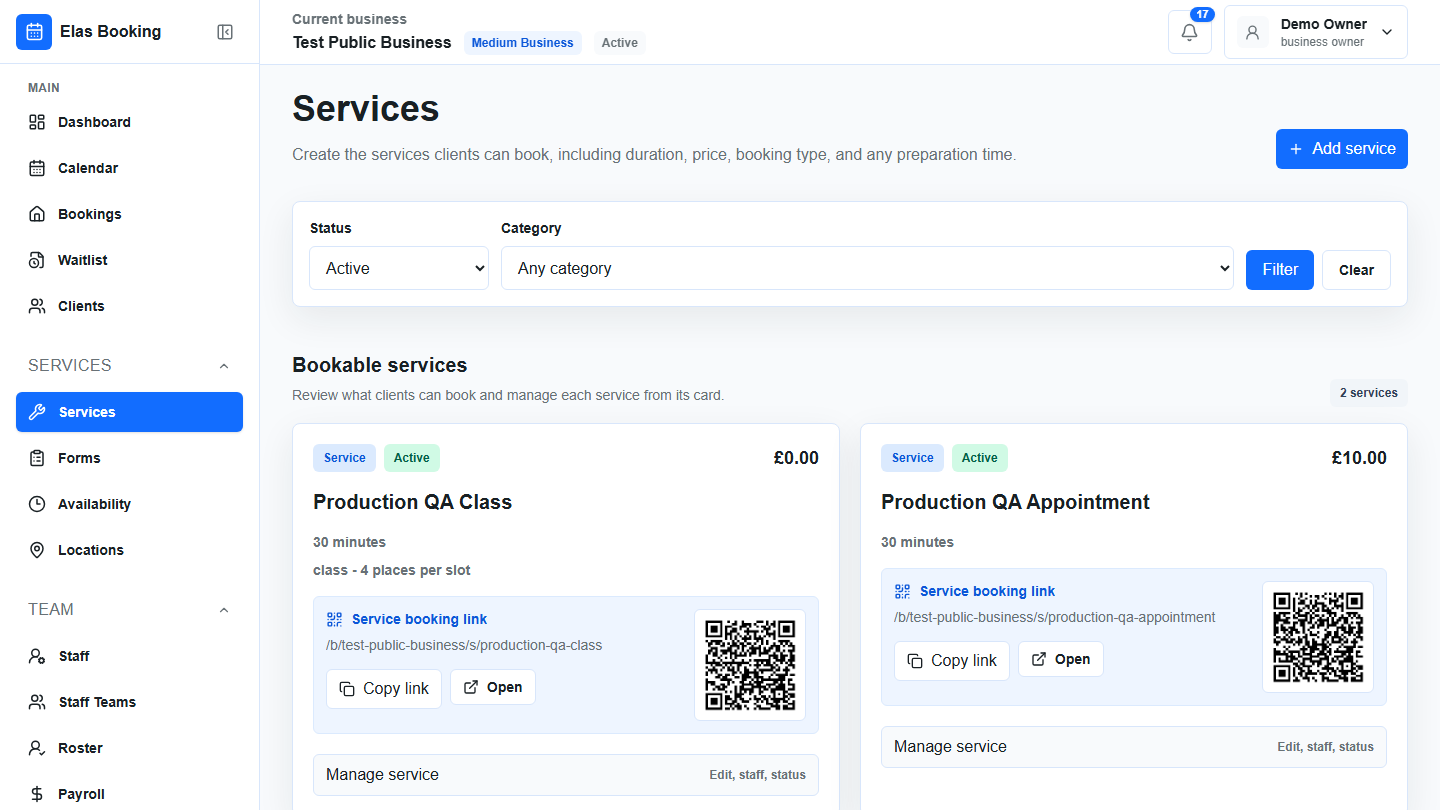
From the dashboard, open Services. The page shows existing bookable services, filters, and an Add service panel. If this is the first service, the empty state asks you to add a duration and price so clients can book real appointment slots.
Use Add service or Open form to start the guided setup. The service wizard is split into four steps:
- Basics.
- Booking type.
- Pricing.
- Advanced.
The guided wizard lets you save a simple service quickly, then come back later for add-ons, buffers, package access, or meeting links.
Step 2: Fill In the Basics
Start with the information clients need to understand the service.
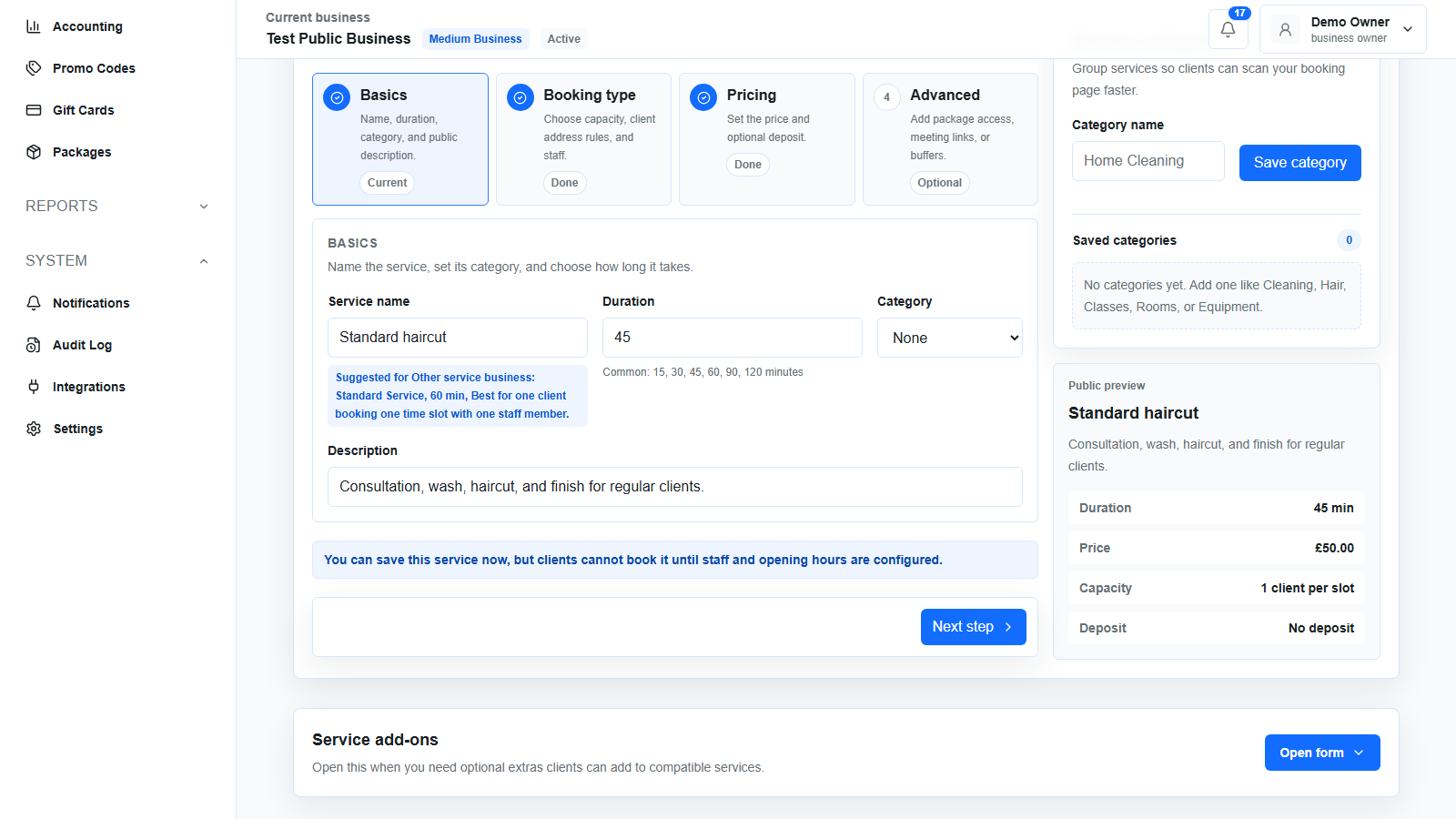
Fill in:
- Service name: use the name clients already understand, such as
Standard haircut,Deep clean,Initial consultation, orBoiler repair callout. - Duration: choose the real appointment length. The minimum is 5 minutes. Days are converted into minutes for scheduling.
- Category: choose an existing category or leave it empty. Categories help clients scan longer menus.
- Description: explain what is included, who the service is for, and what the client should expect.
- Booking page intro: choose no extra intro, use the business intro, use the service name and description, or write a custom service intro.
Keep the description specific. Instead of writing Cleaning service, write what is included, what is excluded, and whether the client should prepare anything before the visit.
Good examples:
Standard haircut with consultation, wash, cut, and finish.One-hour online consultation for new clients. Bring your main questions and any current documents.Two-bedroom home clean including kitchen, bathroom, dusting, floors, and surfaces.Diagnostic callout for electrical faults. Parts and repairs are quoted separately.
Step 3: Choose the Booking Type
The booking type controls how many clients can take the same time slot and whether the client needs to choose a seat or place.
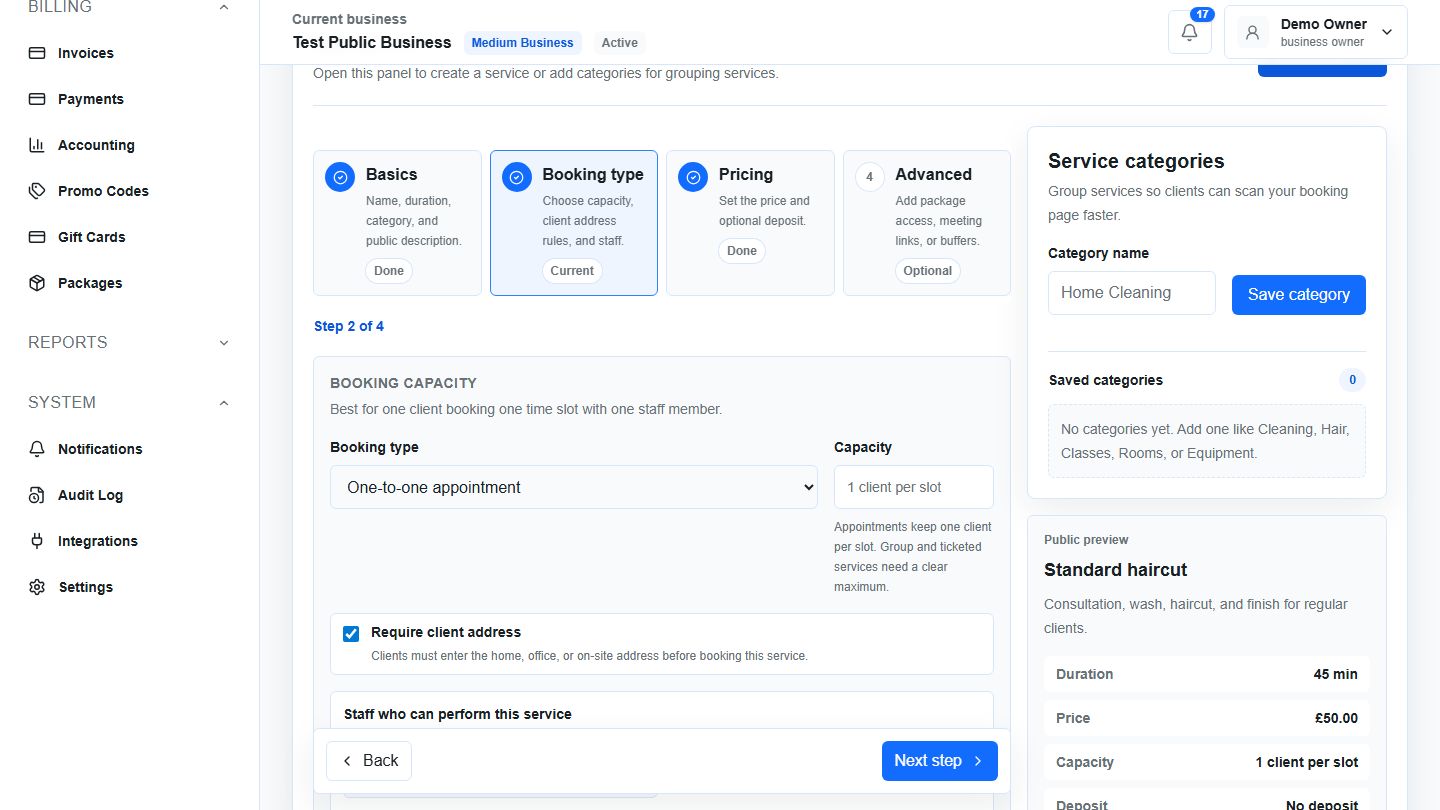
Choose the option that matches the way the service is delivered:
- One-to-one appointment: best for one client booking one time slot with one staff member.
- Class or group session: best when several clients can book the same time.
- Tickets or places: best for selling a number of places without assigning exact labels.
- Assigned seats: best when clients choose exact seats, tables, rooms, numbered places, or resources.
If you choose a group, ticketed, or assigned-seating service, set a clear capacity. For assigned seating, add seat labels such as A1, A2, A3, or one label per line. Seat labels cannot exceed the service capacity.
Turn on Require client address when the business needs a home, office, event, pickup, delivery, or on-site address before accepting the booking. This is useful for mobile beauty, home care, cleaning, trades, repairs, outdoor work, rentals, and callouts.
If staff profiles are available, assign the staff who can perform the service. You can also choose a default staff member for bookings where clients do not choose a specific person. On solo plans, staff assignment is kept to the entitled provider.
Step 4: Set the Price and Deposit
The pricing step sets the customer-facing service price in the business currency.
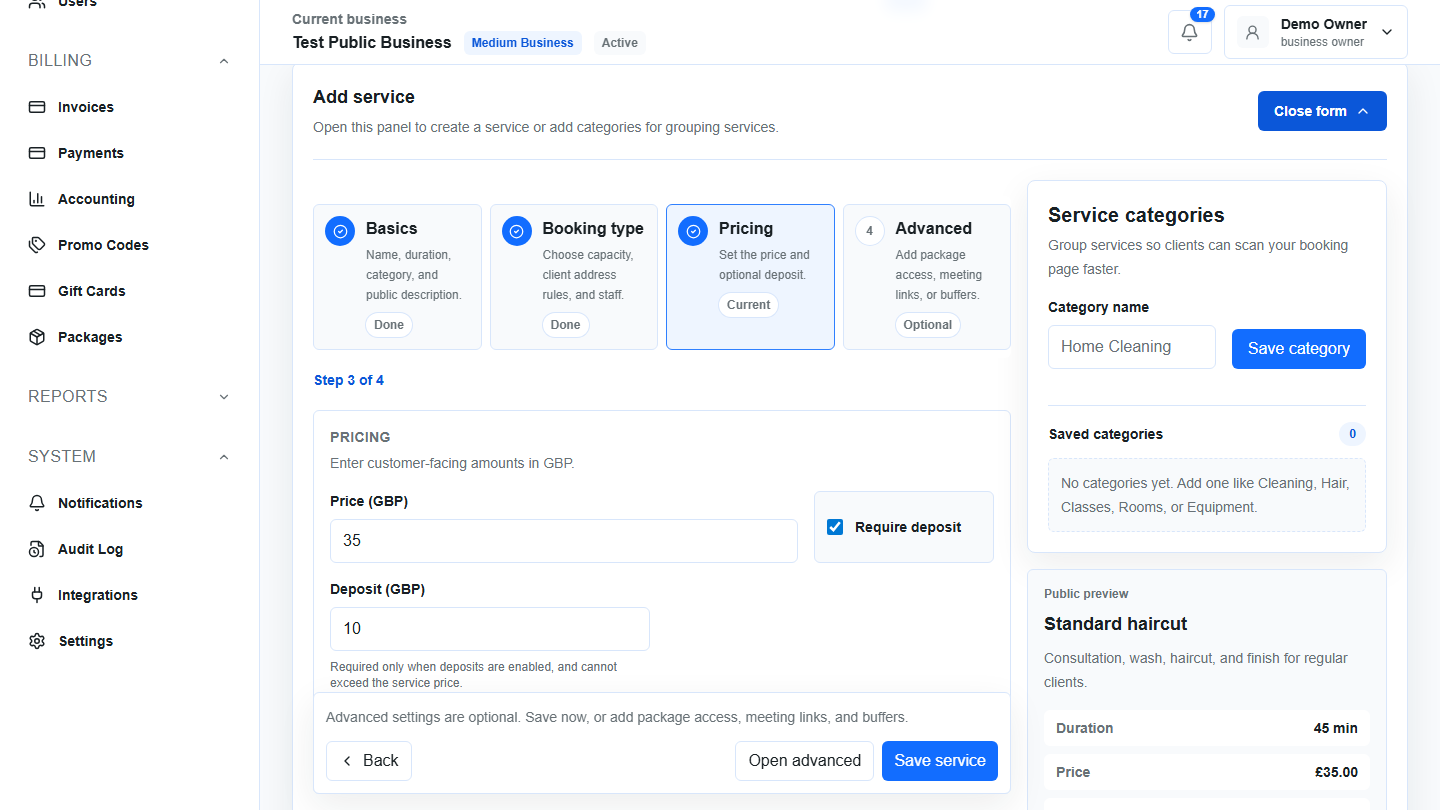
Fill in:
- Price: enter the full customer-facing amount. The price cannot be negative.
- Currency: use the business currency shown in the form.
- Require deposit: turn this on only when the client should pay part of the service price before confirmation.
- Deposit: enter the deposit amount. The deposit is required when deposits are enabled and cannot exceed the full service price.
Use deposits for appointments that need protection, preparation, or limited calendar space. Deposits are especially useful for:
- Long treatments or premium services.
- Weekend or peak-time slots.
- Mobile visits with travel time.
- Repair callouts and diagnostic visits.
- Rentals or limited inventory.
- Events, private sessions, or group bookings.
- Services that require preparation, setup, equipment, or room holds.
Do not make every service deposit-based by default. A deposit should solve a real business problem, such as no-shows, high preparation cost, or scarce availability.
Step 5: Add Advanced Scheduling Rules
Advanced settings are optional. Use them when the service needs rules beyond name, duration, price, and staff.
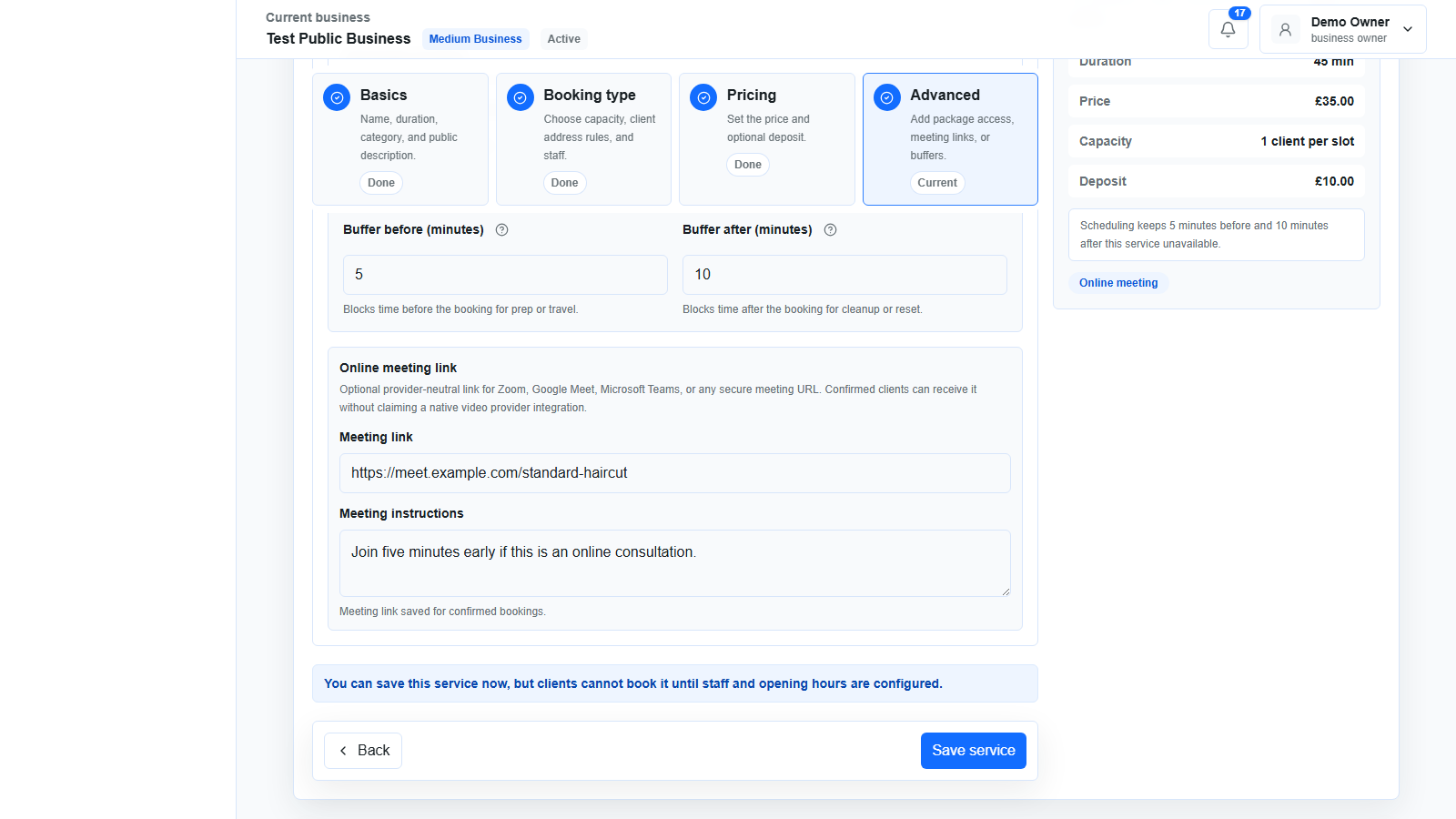
Useful advanced options include:
- Package access: require an active package or membership before the service can be booked.
- Meeting link: add a secure online meeting URL for Zoom, Google Meet, Microsoft Teams, or another provider.
- Meeting instructions: tell confirmed clients how to join or prepare.
- Buffer before: block time before the booking for travel, setup, preparation, or room reset.
- Buffer after: block time after the booking for cleanup, notes, follow-up, handover, or travel.
Buffers are not shown as part of the public service duration. They protect the calendar around the booking. For example, a client may see a 60-minute appointment, while the business calendar blocks 75 minutes because there are 10 minutes before and 5 minutes after.
Step 6: Save and Review the Service Card
Select Save service when the service details are ready. After saving, review the service card in the bookable services list.
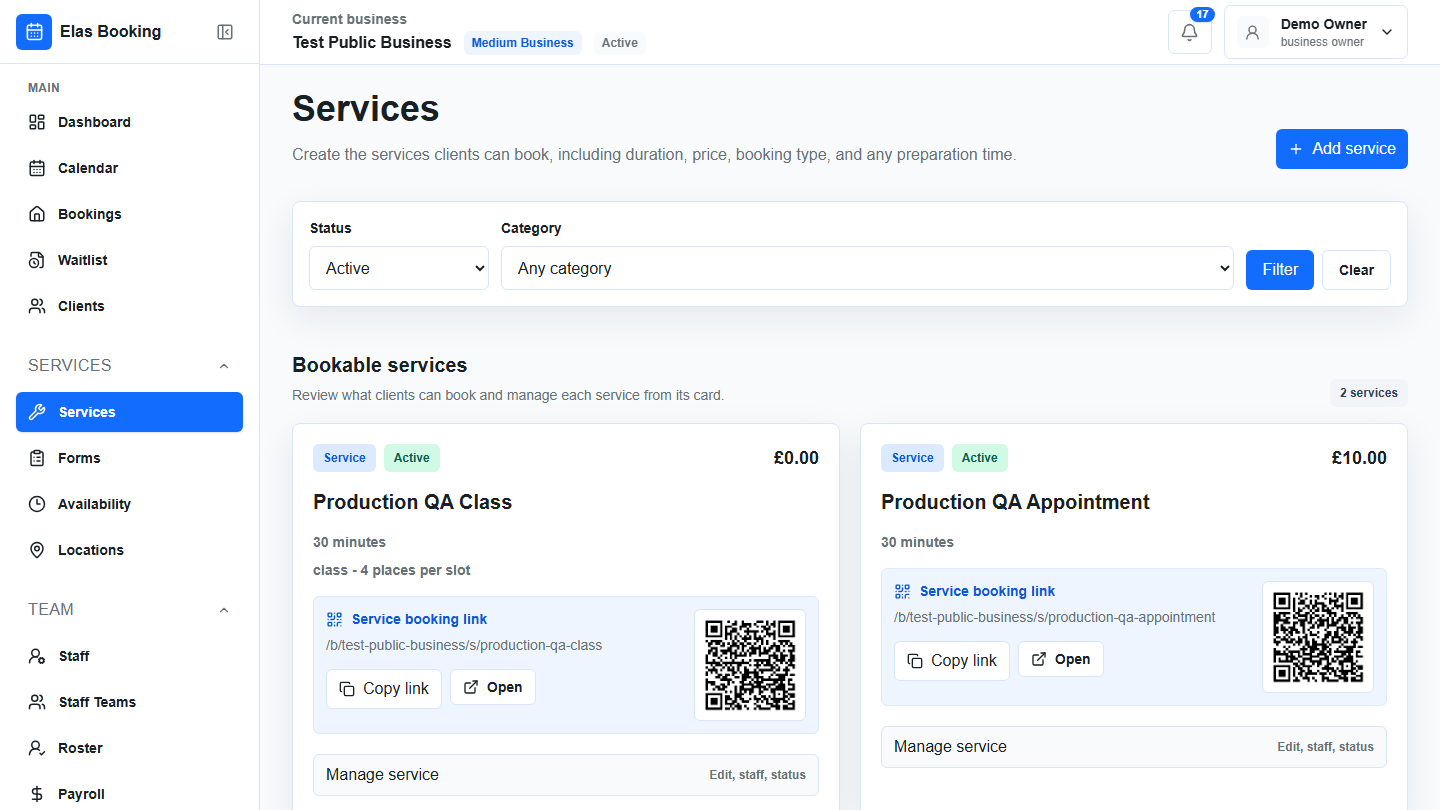
The service card helps you confirm:
- The service is active.
- The category is correct.
- The name and description are clear.
- Duration and buffers look right.
- Price and deposit are correct.
- Capacity appears for group, ticketed, or assigned-seating services.
- Compatible add-ons appear when available.
- A service booking link is available on supported plans.
If a service should not appear publicly yet, use Manage service and deactivate it. Deactivating keeps the service in the dashboard but removes it from public booking pages. Existing bookings stay in place.
Step 7: Set Hours and Staff Before Sharing
A service needs availability before clients can book it online. After saving the service, check:
- Availability: add at least one active business-hours rule.
- Staff: make sure at least one assigned staff profile is bookable.
- Payments: connect payment setup before relying on deposits.
- Public booking page: preview the booking page before sending it to clients.
If the dashboard shows a setup prerequisite banner, follow it before sharing the link. The most common missing items are active service, business hours, and bookable staff.
Step 8: Add Service Add-Ons
After at least one main service exists, open Service add-ons if clients should be able to add extras.
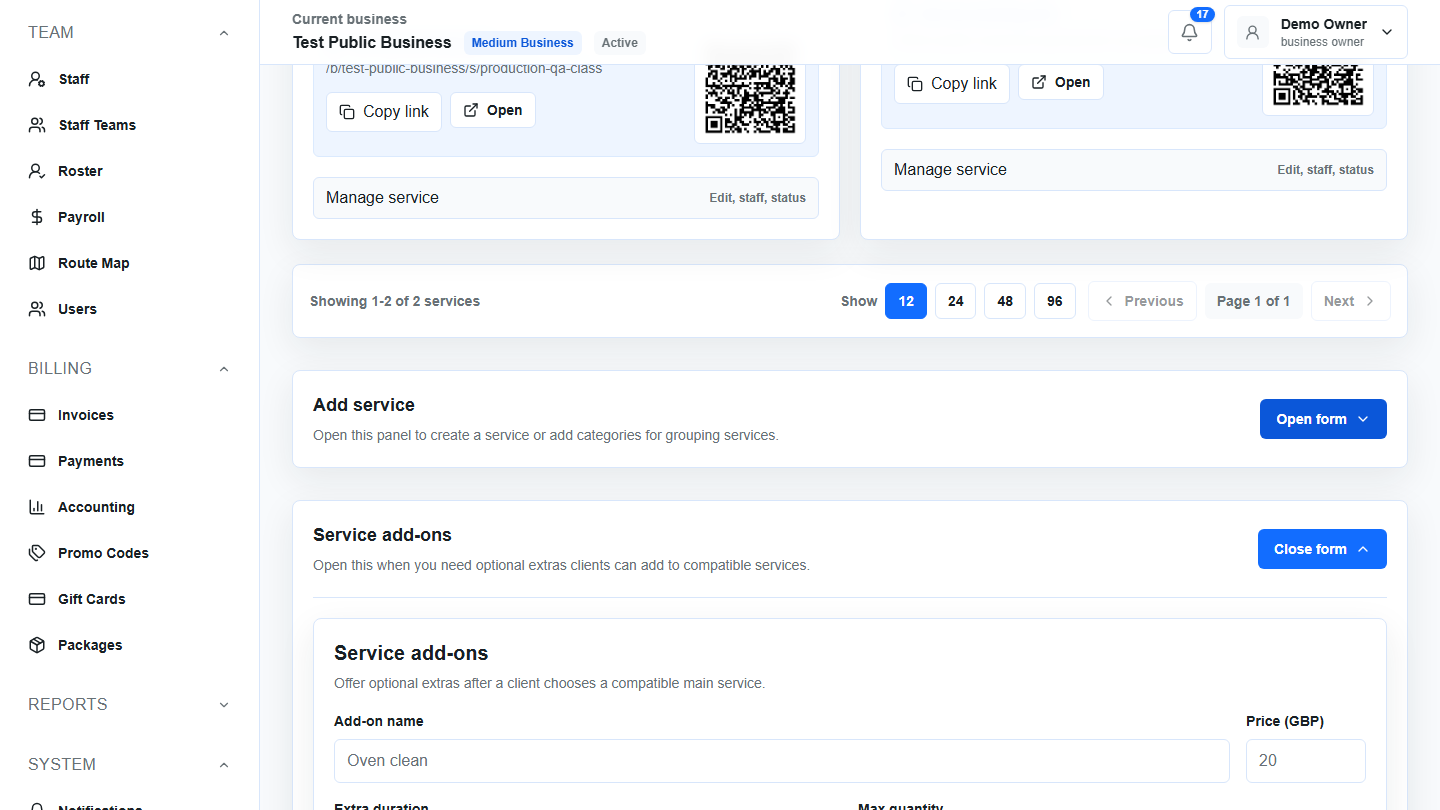
Use add-ons for optional extras that belong to a main booking:
- Oven clean added to a home clean.
- Beard trim added to a haircut.
- Extra 30 minutes added to a consultation.
- Priority visit added to a callout.
- Equipment hire added to a class or event.
- Deep conditioning treatment added to a hair appointment.
Each add-on needs:
- Add-on name.
- Price.
- Extra duration, if it should extend the booking.
- Maximum quantity.
- Optional description.
- At least one compatible service.
If an add-on does not apply to every service, select only the compatible services. This keeps the client booking flow simple and prevents irrelevant extras from appearing.
Step 9: Test the Client Booking Flow
Before sending the service link to clients, test it as if you were a customer.
Check that:
- The service name is easy to understand.
- The description answers the obvious questions.
- The duration is realistic.
- The price and deposit are correct.
- The client can choose a valid time.
- Address fields appear only when needed.
- Staff selection behaves the way the business expects.
- Add-ons are relevant and priced correctly.
- Meeting instructions do not expose private links before confirmation.
- Confirmation and reminder messages contain the right preparation details.
If anything feels confusing in the client flow, adjust the service before sharing the link publicly.
Example Service Setups
Use these examples as starting points. Adjust the names, durations, deposits, and buffers for the way the business actually works.
One-to-One Appointment
Example: Standard haircut
- Booking type: one-to-one appointment.
- Duration: 30 minutes.
- Price: the standard haircut price.
- Deposit: off unless no-shows are a common problem.
- Address: off.
- Staff: assign barbers who can perform the service.
- Buffer: optional 5 minutes after if cleanup time is needed.
Home Visit or Callout
Example: Electrical diagnostic callout
- Booking type: one-to-one appointment.
- Duration: 60 minutes.
- Price: the callout or diagnostic fee.
- Deposit: on if the business needs to protect travel time.
- Address: on.
- Staff: assign qualified technicians.
- Buffer: add travel or reset time before and after.
- Description: explain that repairs or parts are quoted separately.
Class or Group Session
Example: Saturday yoga class
- Booking type: class or group session.
- Capacity: maximum number of people in the class.
- Duration: 60 minutes.
- Price: per attendee.
- Deposit: optional, depending on cancellation policy.
- Address: off unless the class is at the client location.
- Staff: assign instructors who can run the class.
- Add-ons: optional mat hire, equipment, or private follow-up.
Ticketed or Assigned-Seating Booking
Example: Workshop seat
- Booking type: tickets or assigned seats.
- Capacity: number of available places.
- Seat labels: required for assigned seating.
- Price: per ticket or seat.
- Deposit: use only if the business collects partial payment.
- Description: include arrival time, materials, cancellation terms, and what is included.
Common Mistakes to Avoid
Avoid these service setup problems:
- Using a vague service name like
BookingorService. - Setting the duration shorter than the real appointment.
- Forgetting setup, cleanup, route, or handover time.
- Requiring a deposit that is higher than the full service price.
- Leaving a mobile or home-visit service without an address requirement.
- Assigning staff who are not bookable.
- Creating add-ons that apply to the wrong services.
- Sharing the service link before business hours are configured.
- Publishing a service before testing the client booking flow on mobile.
- Putting private operational notes in the public description.
Security and Permission Notes
Service setup is tenant-protected. A business owner or manager should only manage services for their own business. The service actions validate the logged-in user, role access, enabled services module, business ownership, category ownership, staff ownership, package ownership, CSRF protection, duration, price, deposit rules, booking type, capacity, and seat labels on the server.
Do not rely on a copied business ID, staff ID, package ID, or price from the browser. Treat the dashboard as the editing surface, but keep trust on the server. This protects each business from seeing or changing another business service.
FAQ
Can I create a service before setting opening hours?
Yes. You can save the service first, but clients need active business hours before they can book real times online.
Can a service have no deposit?
Yes. Deposits are optional. Use them when they protect valuable time, limited inventory, travel, preparation, or high-risk bookings.
Can clients book one specific service link?
Yes, on supported plans. Active services can have service-specific booking links that lead clients directly to that service.
Can I hide a service without deleting it?
Yes. Deactivate the service from its management panel. It stays in the dashboard but is removed from public booking pages.
Should every business use add-ons?
No. Add-ons are useful when clients genuinely choose extras after selecting a main service. If an option changes the core appointment, it may be clearer as a separate service.
What should I review before approving this guide for publishing?
Check the image wording, product names, exact field labels, examples, and whether the article should include production screenshots before posting. This draft has not been published.