How to Create an Online Booking Page for a Small Business
Learn what to include on a small business booking page: services, prices, availability, deposits, reminders, client details, and a public booking link.
On this page
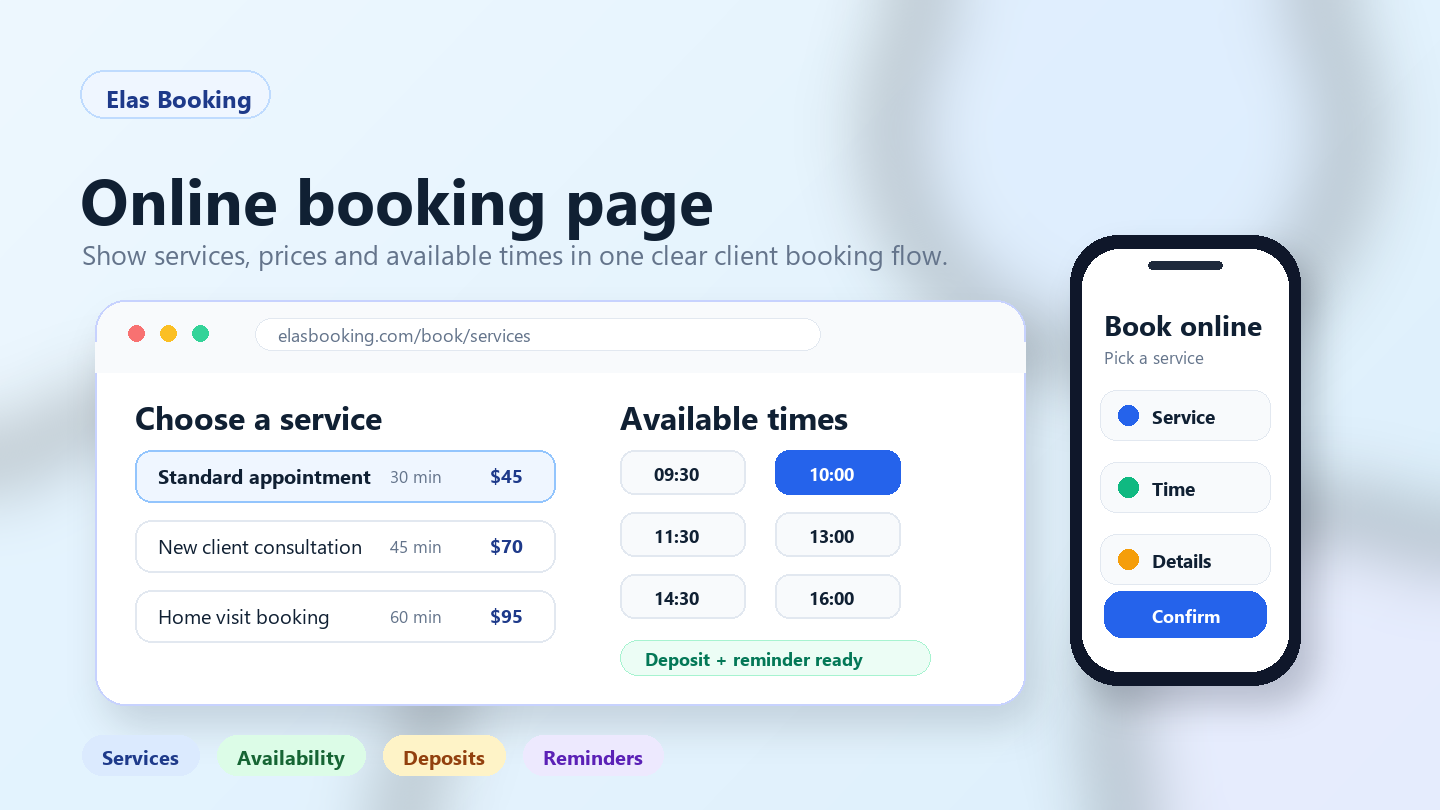
An online booking page for a small business is the public page or link where clients choose a service, see available times, understand the price and duration, and request or confirm an appointment. For a service business, it can replace a lot of back-and-forth messages without making the client feel pushed through a cold checkout flow.
The page does not need to be complicated. It needs to answer the questions clients normally ask before booking: what can I book, how long will it take, what does it cost, where does it happen, who provides the service, and what happens after I confirm?
This guide covers what to include before you share your booking link, with examples for salons, cleaners, consultants, mobile services, and trades callouts.
What is an online booking page?
An online booking page is a client-facing appointment page for your services. It usually includes your service menu, available appointment times, prices or starting prices, booking rules, payment or deposit requirements, and any details the client needs to provide before the appointment.
For a small service business, the booking page should connect to the way the business actually works. A barber may need short appointment slots and staff choice. A cleaner may need address notes and service duration. A consultant may need online meeting instructions. A plumber may need a callout type, property access notes, and enough information to decide what kind of visit is needed.
A good booking page is not just a calendar. It is a clear path from interest to confirmed appointment.
Why small service businesses need a dedicated booking page
Many small businesses take bookings from calls, texts, social media messages, website forms, email, and repeat clients. That works at the start, but it gets messy when enquiries arrive while you are with a client, driving between jobs, or trying to plan tomorrow's schedule.
A dedicated booking page helps by giving clients one place to:
- Choose the right service.
- See available appointment times.
- Check the price, duration, and basic rules.
- Add useful client details before the appointment.
- Pay a deposit when the service needs one.
- Receive a clearer confirmation and reminder.
It also helps you keep bookings closer to your real calendar. Instead of promising a time in one message thread and forgetting to block it elsewhere, the booking page can work from the availability you have set.
Start with a clear service menu
The service menu is the part of the booking page clients notice first. If the menu is vague, clients either choose the wrong appointment or leave to ask a question.
Keep each service name specific enough to make sense on its own. A client should not have to guess the difference between Appointment, Standard service, and Premium service.
Better examples:
Standard haircut, 30 minutesDeep home clean, 4 hoursNew client consultation, 45 minutesBoiler diagnostic callout, 60 minutesMobile makeup trial, 90 minutes
If you offer several similar services, group them by category. A salon might separate cuts, colour, treatments, and consultations. A cleaning business might separate regular cleaning, deep cleaning, move-out cleaning, and quote visits. A consultant might separate discovery calls, strategy sessions, and follow-ups.
If you are setting this up inside Elas Booking, start with your service menus and make sure each bookable service has a clear name, duration, price, and description.
Show prices, durations, and what is included
Clients should know what they are booking before they pick a time. A useful booking page makes the basic decision easy.
For each service, include:
- The service name.
- The appointment length.
- The price or starting price.
- What is included.
- What is not included, if clients often assume too much.
- Whether the appointment happens online, at your location, or at the client's address.
- Any preparation notes the client needs before booking.
This is especially important when two appointments look similar but need different amounts of time. A regular clean is not the same as a deep clean. A haircut is not the same as a colour consultation. A diagnostic callout is not the same as a full repair.
Clear service details protect your calendar and help clients feel more confident when they book.
Connect real availability before sharing the link
Do not share a booking page until the availability behind it is ready. If clients can see times you cannot actually accept, the booking page creates more admin instead of less.
Before publishing, check:
- Business hours.
- Days you do not work.
- Staff working hours, if you have a team.
- Appointment lengths.
- Buffer time before or after services.
- Travel time for mobile or home visit work.
- Private blocks for lunch, school runs, supplier visits, or admin time.
The goal is simple: clients should only see times you are comfortable accepting.
This matters more for businesses that move between locations. A mobile beauty provider may need time to park, set up, clean tools, pack down, and travel. A tradesperson may need wider gaps because callouts run long. A consultant may need short breaks between video calls.
Use staff scheduling when clients need the right person
If your business has more than one provider, your booking page should make staff choice clear without overwhelming the client.
Use staff scheduling when:
- Clients regularly request a specific person.
- Different staff provide different services.
- Staff have different working hours.
- Some appointments need a specialist qualification.
- The business wants to balance bookings across the team.
A barber shop may let clients choose their barber. A clinic may assign appointment types to specific practitioners. A cleaning company may keep repeat clients with the same cleaner where possible.
If you are a solo business, keep this simpler. Clients do not need to see team options when there is only one bookable provider.
Add deposits, payment rules, and cancellation notes where needed
Not every service needs a deposit. A deposit makes sense when the appointment uses scarce time, requires preparation, or has a higher risk of late cancellation.
Deposits are often useful for:
- Long appointments.
- Weekend or peak-time slots.
- Mobile services with travel time.
- Bridal, event, or group bookings.
- Repairs and diagnostic callouts.
- Rentals or limited inventory.
- First-time appointments with high no-show risk.
If you use deposits and online payments, explain the rule before the client confirms. Tell them the deposit amount, when the rest is due, and what happens if they cancel or reschedule.
Keep the wording plain. Clients should not need to read a legal page to understand the booking rule.
Example:
A deposit is required to hold this appointment. The remaining balance is due at the visit. Please give at least 24 hours' notice if you need to reschedule.
For more examples, review the booking software with deposits guides.
Collect the right client details without making the form too long
A booking page should collect enough information to prepare for the appointment, but not so much that clients give up halfway through.
Start with the basics:
- Name.
- Email address.
- Phone number.
- Service choice.
- Preferred time.
- Address, if the service happens at the client's location.
- Short notes field for anything unusual.
Then add service-specific questions only where they help.
A cleaner may need access notes, parking, pets, and number of bedrooms. A mobile beauty provider may need event time, skin notes, and the number of people. A consultant may need a short description of the problem. A trades callout may need the property type, fault description, photos, and access details.
The test is simple: if the answer helps you prepare, ask it. If it is only nice to know, leave it for later.
Use add-ons, buffers, and address requirements for complex services
Some bookings need more than a service and a time slot. A booking page can stay simple for the client while still protecting your schedule behind the scenes.
Use add-ons when clients often want extras attached to the main service. A cleaner may offer oven cleaning as an add-on. A barber may offer a beard trim with a haircut. A tutor may offer extra lesson time. A rental business may offer equipment or delivery options.
Use buffers when the appointment needs time around it. Buffers can cover setup, cleanup, travel, notes, room reset, or packing equipment.
Use address requirements when the location affects whether you can accept the booking. This is important for home visit booking workflows, mobile services, trades, cleaning, care, repairs, and outdoor work.
If you need to configure a service from the dashboard, use the step-by-step guide to set up a business service.
Make the booking page mobile-friendly and easy to share
Many clients will open your booking page from a phone. They may come from Instagram, Google, a text message, an email, a QR code, or a referral.
Before sharing the link widely, check the mobile experience:
- Can clients read service names without zooming?
- Are prices and durations visible before they choose a time?
- Is the date and time selection easy to use?
- Are forms short enough for a phone screen?
- Are payment or deposit steps clear?
- Does the confirmation message tell the client what happens next?
A public booking link is useful because you can place it wherever clients already find you. Add it to your website, social profiles, email signature, printed cards, appointment reminders, and follow-up messages.
If you work away from a fixed location, the mobile service booking guides cover extra details such as travel areas, addresses, setup time, and client preparation.
Test the public booking link before sending it to clients
Testing the booking page takes a few minutes and prevents awkward mistakes.
Open the public booking link as if you were a new client. Do not test only from the dashboard, because clients will not see the admin view.
Check that:
- The right services are visible.
- Hidden or draft services are not visible.
- Durations and prices are correct.
- Available times match your real calendar.
- Staff options make sense.
- Address fields appear only where needed.
- Deposit rules are clear.
- Add-ons are relevant.
- Confirmation and reminder text is easy to understand.
- The page works on a phone.
Then make one test booking if your setup allows it. Cancel or remove the test afterwards so it does not block a real client slot.
Online booking page checklist
Use this checklist before you publish or share your booking page.
Service menu:
- Services have clear names.
- Each service has the right duration.
- Prices or starting prices are visible where needed.
- Descriptions explain what is included.
- Categories help clients scan longer menus.
Availability:
- Business hours are set.
- Time off and private blocks are added.
- Staff hours are correct, if staff scheduling is enabled.
- Buffers protect travel, setup, cleanup, and admin time.
- Clients only see realistic appointment times.
Booking rules:
- Deposits are used only where they solve a real problem.
- Cancellation or rescheduling notes are clear.
- Address requirements are enabled for visits at the client's location.
- Add-ons are attached only to the services they fit.
- Client questions are useful and not excessive.
Client experience:
- The page is easy to use on mobile.
- The public booking link is easy to share.
- Confirmation text tells clients what happens next.
- Reminders include the appointment time, location, and preparation notes where needed.
- The page has been tested before sending it to clients.
Where Elas Booking fits
Elas Booking is built for appointment-led small businesses that need a practical way to manage services, availability, booking pages, payments, reminders, clients, and day-to-day operations.
You can use Elas Booking to set up booking pages and reminders, create bookable services, share public booking links, manage staff availability when your plan includes staff, take deposits for selected services, and keep client details connected to bookings.
If you want to see how the booking flow works before setting up your own page, you can view the Elas Booking demo or compare plans.
Related guides
These guides are useful if your booking page needs a more specific setup:
- Booking software with deposits for deposit rules, payment timing, and cancellation notes.
- Booking software with reminders for confirmations, reminders, preparation notes, and missed-appointment prevention.
- Home visit booking workflows for addresses, access notes, travel time, and recurring visits.
- Mobile service booking guides for travel areas, setup time, client notes, and mobile appointments.
- Set up a business service for the dashboard setup steps inside Elas Booking.
FAQ
What should be included on a small business booking page?
A small business booking page should include clear services, prices or starting prices, appointment durations, available times, location details, staff options if needed, deposit rules, cancellation notes, and a simple way for clients to share useful details before the appointment.
Can I use an online booking page without a full website?
Yes. Many small businesses share a public booking link from social profiles, messages, email signatures, printed cards, and existing directory listings. A website can still help with trust and search visibility, but the booking page gives clients a direct place to choose a service and time.
Should I require deposits on my booking page?
Use deposits when they protect real business time or costs. They are helpful for long appointments, mobile visits, event work, rentals, premium services, and bookings that require preparation. For quick or low-risk appointments, a deposit may add friction without solving much.
How do I stop clients from booking the wrong service?
Use specific service names, clear descriptions, realistic durations, categories, and short preparation notes. If two services are commonly confused, explain the difference in the description. You can also use a quote visit or consultation service when the final job needs review first.
What should I test before sharing my booking link?
Test the booking page on desktop and mobile. Check services, prices, durations, availability, staff options, address fields, deposits, add-ons, confirmation text, and reminders. If possible, make a test booking and remove it afterwards so the slot does not stay blocked.
Final thought
A good online booking page should make the next step obvious. Clients should know what they are booking, when it is available, what it costs, and what details they need to provide. If the page answers those questions clearly, it can take pressure off your inbox and give clients a smoother way to book.
How this can look for service teams
Use these examples as a starting point for How to Create an Online Booking Page for a Small Business and other professional services booking workflows.
Appointment-led examples
These anonymized scenarios reflect common setup patterns from appointment-led businesses.
A prepared consultation
A client books a meeting, but the business needs context before deciding the right slot, format, and follow-up.
Collect appointment goal, client context, preferred time, meeting format, follow-up need, or preparation note and keep client context attached to the booking.
A limited availability slot
A high-value appointment takes preparation time, so the business needs clear cancellation rules before the calendar is blocked.
Use deposits for high-value appointments, limited consultation slots, or work that needs preparation and send reminders with meeting time, preparation notes, rescheduling rules, and follow-up expectations.
Example booking form
A compact booking form should collect client context and scheduling details before accepting the slot.
Service
How to Create an Online Booking Page for a Small Business consultation
Client context
Appointment goal, client context, preferred time, meeting format, follow-up need, or preparation note
Deposit
Recommended for high-value appointments, limited consultation slots, or work that needs preparation
Reminder
meeting time, preparation notes, rescheduling rules, and follow-up expectations
Deposit setup
Set the amount, refund window, and payment timing for high-value appointments, limited consultation slots, or work that needs preparation so clients understand the commitment before they confirm.
Automatic reminder
Send confirmation and reminder messages with meeting time, preparation notes, rescheduling rules, and follow-up expectations.
Calendar and travel buffer
Add availability rules, intake forms, reminders, and follow-up workflows around the booking so the calendar stays realistic.
Client record
Keep contact details, booking history, client context, forms, and follow-up context attached to the client record.
Booking checklist
- Confirm consultations, client details, availability, reminders, follow-up tasks, and recurring appointments before the slot is booked.
- Collect appointment goal, client context, preferred time, meeting format, follow-up need, or preparation note in the booking form instead of chasing it afterwards.
- Use deposits for high-value appointments, limited consultation slots, or work that needs preparation.
- Send reminders with meeting time, preparation notes, rescheduling rules, and follow-up expectations.
- Protect the calendar with availability rules, intake forms, reminders, and follow-up workflows.
Manual booking vs online booking
Manual booking
Messages, screenshots, payment links, and client context live in separate places.
Online booking
The service, client context, deposit, reminders, and calendar rules stay attached to one booking.
Common mistakes
- Letting clients book how to create an online booking page for a small business without enough detail.
- Taking deposits for high-value appointments, limited consultation slots, or work that needs preparation without matching them to the booking.
- Sending reminders that miss meeting time, preparation notes, rescheduling rules, and follow-up expectations.
- Leaving availability rules, intake forms, reminders, and follow-up workflows outside the calendar.
When to require a deposit
Use deposits for high-value appointments, limited consultation slots, or work that needs preparation, especially when a late cancellation would create a meaningful loss.
Example cancellation policy
Clients can reschedule up to 24 hours before the booking. Deposits may be retained for late cancellations or no-shows.
Written by Elas Booking team
Written by the Elas Booking team, using product knowledge from appointment scheduling, online payments, reminders, client intake, service areas, and public booking pages for service businesses.
Reviewed by Elas Booking product team
Reviewed for practical accuracy against Elas Booking features including booking pages, deposits, reminders, client records, service menus, and calendar workflows.
Frequently asked questions
Quick answers for this booking workflow.
How do reminders reduce no-shows?
Reminders reduce no-shows by confirming the date, time, preparation notes, and cancellation rules before the booking. They give clients a clear prompt to attend, reschedule, or contact the business.
What should a How to Create an Online Booking Page for a Small Business booking page include?
A strong booking page should include services, duration, price or deposit rules, client questions, cancellation terms, contact details, and any preparation instructions.
Can How to Create an Online Booking Page for a Small Business bookings collect client details?
Yes. Booking forms can collect contact details, appointment notes, addresses, preferences, and other information needed before the service is delivered.
Build a booking page for professional services
Turn this guide into a live booking page with services, reminders, and client details. Start a no-card trial and shape the setup around this kind of service business.


